
See How Your Site Looks on All Social Media Sites
And how to fix with a free tool and pluginVideo 1: Quick Overview of the Problem
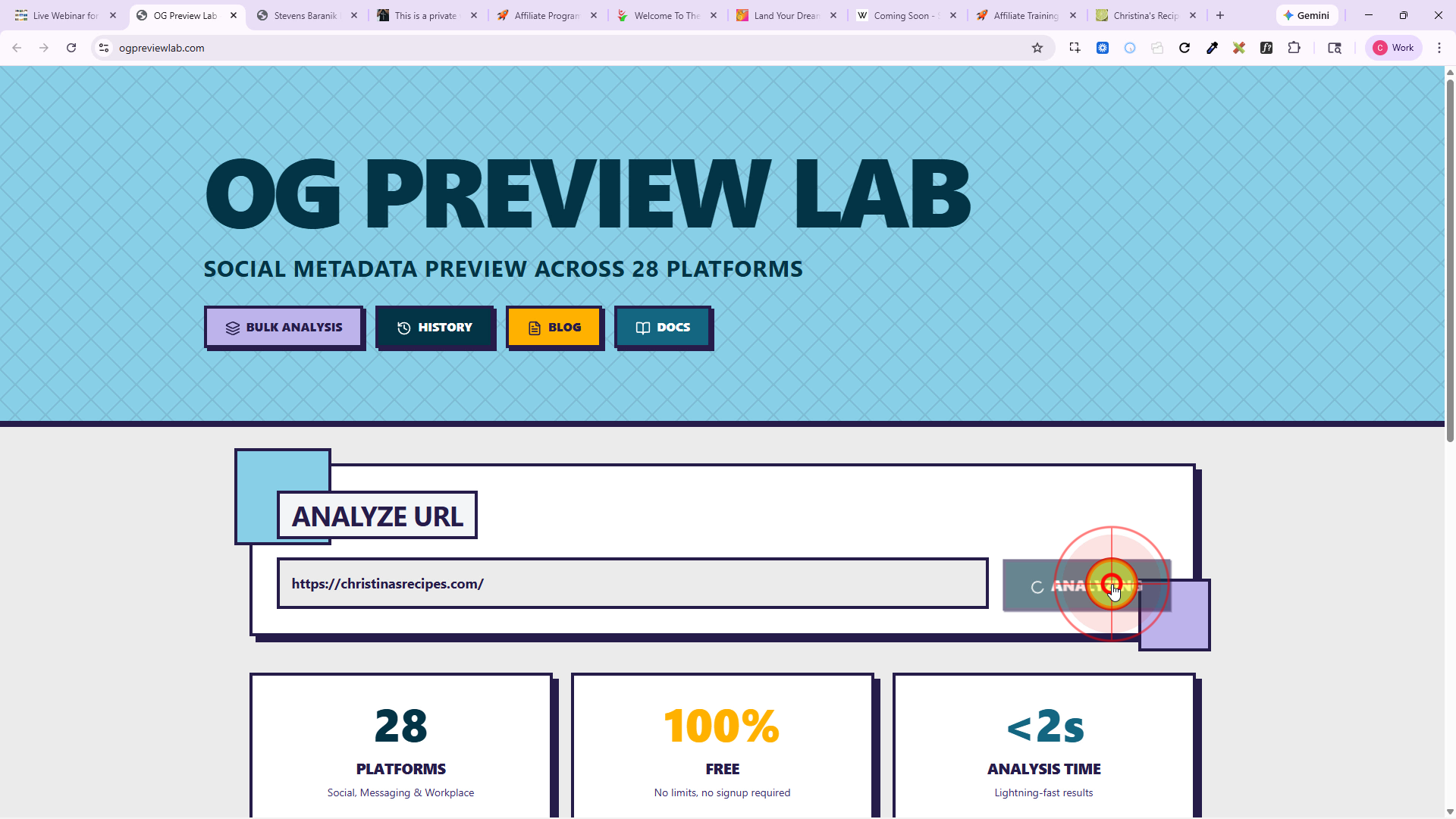
Description: In this video, Christina Hills demonstrates how to use the free tool: https://ogpreviewlab.com/ to check your site on social media. (4 min)
Video 2: How to Implement this with Yoast SEO
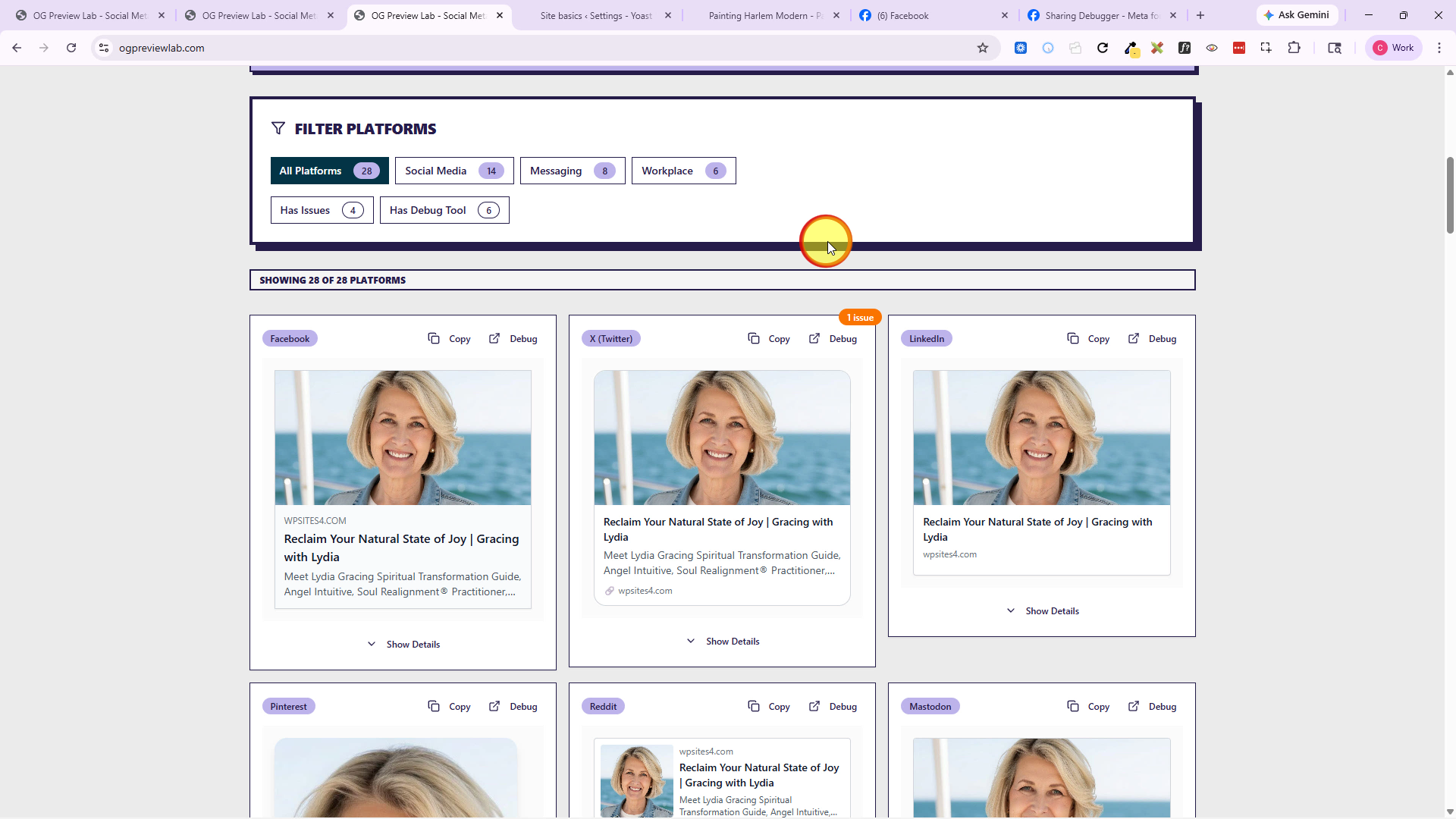
Description: In this video, Christina Hills demonstrates how to customize the Yoast SEO plugin https://wordpress.org/plugins/wordpress-seo/ to control how your site looks on Social Media and to check it with the free tool: https://ogpreviewlab.com/. She shows you how she makes a mistake and how she fixes it (14 min 9 sec)
Steps on How to Set the Social Sharing Image in Yoast SEO
When someone shares your website on Facebook, LinkedIn, Twitter/X, or other social media sites, those platforms use something called an Open Graph image (often called an OG image).
This image is usually pulled from:
- the image you set in Yoast SEO
- the Featured Image
- the first image found on the page
- or sometimes even the Site Icon (favicon)
Below are the best ways to control which image gets shown.
Why Some Sites Show the Site Icon (Favicon) on Social Media
Before installing an SEO plugin like Yoast SEO, many WordPress websites do not provide proper Open Graph image information to Facebook and other social media platforms.
When that happens, social media crawlers try to guess which image to use.
If they cannot find:
- an Open Graph image
- a Featured Image
- or a large image in the page content
they may fall back to using the:
- Site Icon
- favicon
- small logo image
This often looks terrible on social media because:
- favicons are very small
- they are designed for browser tabs, not social sharing
- they may appear blurry or tiny in previews
Why Installing Yoast SEO Changes This Behavior
When you install Yoast SEO, it begins adding Open Graph code to your website pages.
That tells Facebook and other social media platforms:
- which title to use
- which description to use
- which image to use
Even if the image you selected in Yoast is not ideal, social media platforms now have more information to work with.
So instead of using the tiny Site Icon, they may:
- use the image set in Yoast
- or fall back to the first large image found on the page
That is why many students notice:
- before Yoast SEO → social media showed the favicon
- after Yoast SEO → social media started pulling a larger image from the page
This is actually a sign that Open Graph is now working.
The next step is simply making sure the correct image is set properly.
IMPORTANT: Why 1200 × 630 Pixels?
The size 1200 × 630 pixels has become the standard size for social sharing images because it works well across almost all major social media platforms, including:
- Twitter/X
- Slack
- Discord
- iMessage previews
- many other apps and platforms
This size uses an aspect ratio of approximately:
1.91:1
That wide horizontal format is what most social media platforms expect when displaying shared links.
Using 1200 × 630 helps:
- prevent awkward cropping
- avoid images getting cut off
- improve image clarity on high-resolution screens
- increase compatibility across multiple social media platforms
Even though different social platforms may have slightly different recommendations, 1200 × 630 has become the safest “universal” size to use.
IMPORTANT: Use JPG Instead of PNG When Possible
Even though Facebook officially supports both JPG and PNG images, JPG files are often more reliable for social sharing.
Why JPG is usually better
JPG images:
- are smaller in file size
- load faster
- are easier for Facebook and social media crawlers to process
- have fewer transparency issues
- tend to work more consistently with caching systems and optimization plugins
PNG images can sometimes cause problems because:
- they are larger files
- they may contain transparency
- they sometimes use unusual color profiles
- Facebook occasionally ignores them and pulls another image from the page instead
So for the most reliable results, especially for social sharing images, use:
- JPG format
- 1200 × 630 pixels
- RGB color mode
PART 1: Setting the Default Social Sharing Image for Your Entire Website
This is the image social media may use for:
- your homepage
- pages without a Featured Image
- pages where no custom social image has been set
Step 1: Create the image
For best results:
- Size: 1200 x 630 pixels
- Format: JPG
- Use RGB color mode
- Use a NEW filename each time you replace it
Example:
homepage-social-image-v2.jpg
Step 2: Set the default image in Yoast SEO
In WordPress go to:
SEO → Settings → Site Basics
(Depending on your version of Yoast, this may also appear under Social settings.)
Look for the area where you can set the:
- default social sharing image
- site image
- Open Graph image
Upload or select your image.
Save your changes.
Step 3: Clear your cache
If you use:
- a caching plugin
- Cloudflare
- server caching
- image optimization plugins
clear those caches after updating the image.
Do You Need to Clear Your Browser Cache?
Usually, no.
Your browser cache normally does NOT affect what Facebook or social media platforms see.
The important caches to clear are:
- website caching plugins
- hosting/server cache
- CDN cache (like Cloudflare)
Those are the caches that affect the actual page code and Open Graph information being served to Facebook and other social media platforms.
However, your browser itself may still show you an older version of the image while testing.
So if:
- you are not seeing the updated image on your own screen
- or preview/testing tools still look outdated
you can try:
- refreshing the page
- opening the page in a private/incognito window
- or clearing your browser cache
But in most cases, the critical cache to clear is the website/server cache, not the browser cache.
PART 2: Setting a Social Sharing Image for the Homepage
Normally, social media sites will use the Featured Image for a page or post.
But sometimes you may want to:
- override the Featured Image
- use a different image for social sharing
- avoid using a Featured Image because it affects the page design/layout
In those cases, you can set a custom image directly in Yoast SEO.
Step 1: Edit the page or post
Open the page or blog post in WordPress.
Scroll down to the Yoast SEO section.
Step 2: Open the Social tab
Inside Yoast SEO:
- click the Social tab
- look for the Facebook/social image section
Upload or select the image you want social media to use.
This image can be completely different from the Featured Image.
Step 3: Update the page
Click Update or Publish.
Step 4: Clear cache again
Clear any:
- website cache
- CDN cache
- optimization plugin cache
IMPORTANT: Social Media Caching
Facebook and other social media sites cache images aggressively.
Even after changing the image, you may still see the old one temporarily.
This does NOT necessarily mean you did anything wrong.
Troubleshooting Tips
If the wrong image still appears:
Try these fixes:
- Convert the image to JPG
- Make sure the image is 1200 × 630
- Rename the image file before uploading
- Clear cache
- Wait a few hours
Important to Know
Even preview/testing tools can show outdated cached images.
Sometimes Facebook updates within minutes.
Sometimes it may take several hours.
In stubborn cases, allow up to 24 hours for social media platforms to refresh their cache naturally.