
Refresh Video: How to Display Child Pages with "CC Child Pages" Plugin

Description:
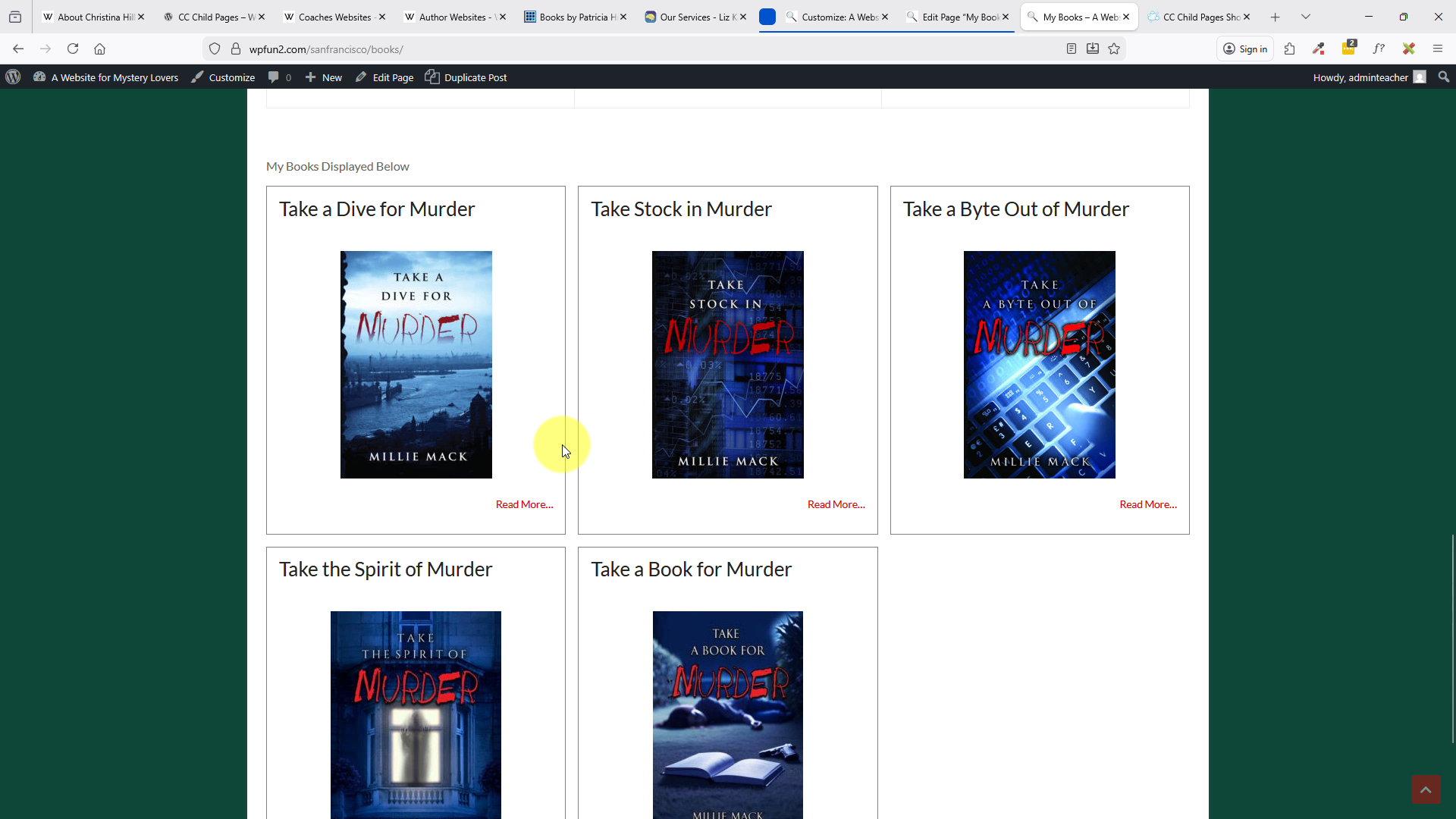
In this video, Christina demonstrates how to use the “CC Child Pages” Plugin to display child pages in a visual way. In this example she uses a student site who has a books page, and the child pages plugin automatically displays the child pages in a visual way. She shows you how to use the short codes to customize how to display the grid of childpages (also called sub pages) This makes it easy to add child pages, and have the display automatically update. Here is the documentation guide from the developer (Length 18 min 22 sec)
Enjoy the video!
In the video she refers to these pages:
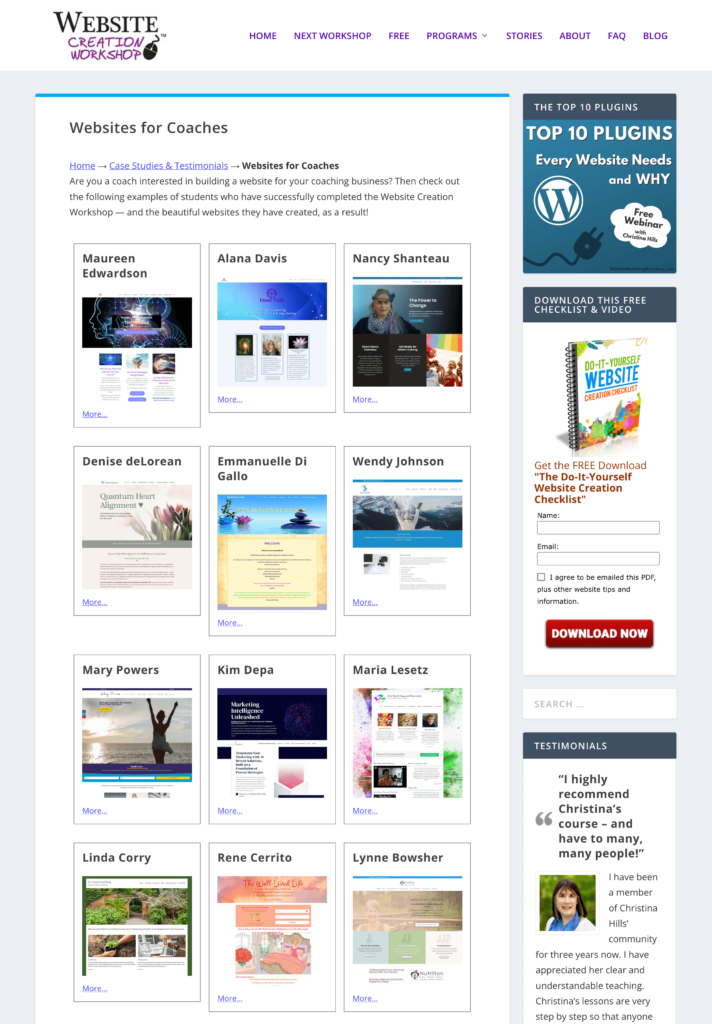
https://websitecreationworkshop.com/examples/websites-for-coaches/
https://websitecreationworkshop.com/examples/websites-for-authors/
https://lizkarltoncoaching.com/our-services/
and
https://patriciahills.com/books/
Note: Be careful when you copy a shortcode from off of a web page. You can copy other hidden HTML code with it. Sometimes it’s just safer to type the square brackets in manually.

Assignment:
Install the plugin https://wordpress.org/plugins/cc-child-pages/ and activate it.
Here is the simple version of the shortcode (Type this in): 

NOTE: If you add the child pages code and you can’t see it, add it in code mode.
Here is the documentation: https://docs.ccplugins.co.uk/plugins/cc-child-pages/cc-child-pages-shortcode-guide/
The shortcode we used for this page on my blog: https://websitecreationworkshop.com/blog/examples/websites-for-coaches is this:

This first code is the plain one:
This second code displays the images, links the images, hides the excerpts, and changes the labe to read more, and displays in a clean white box with border:
This image will show you the options with the plugin. Click to view large: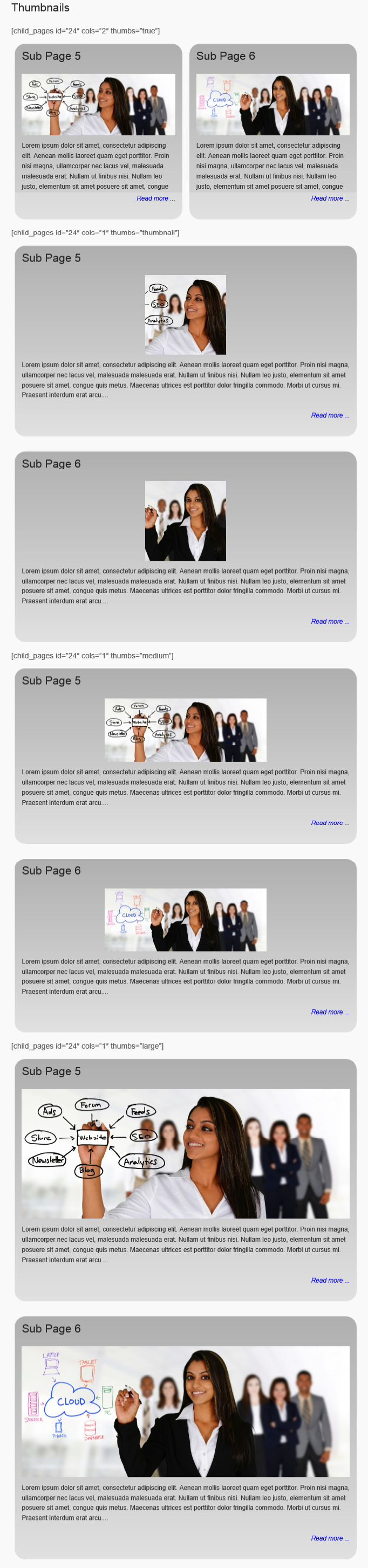
If you want it to have the clean styling like this...
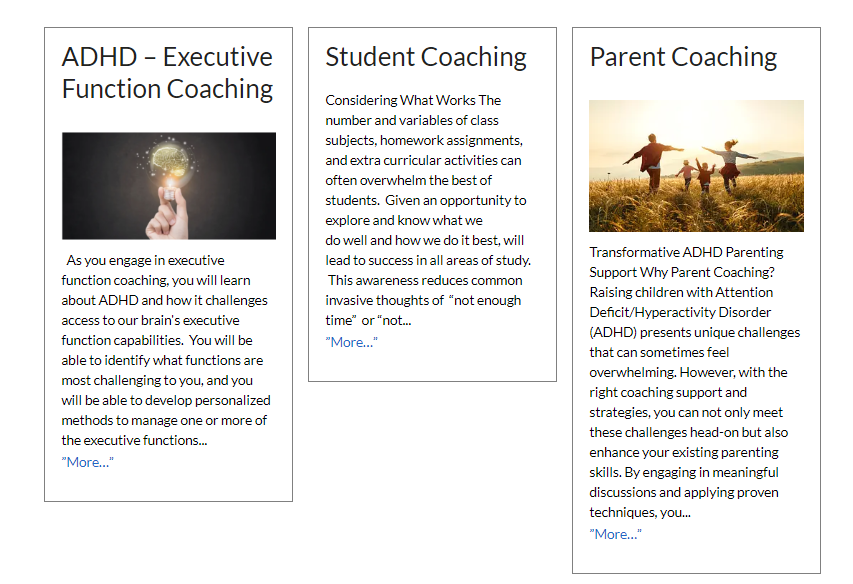
Simply navigate to Dashboard > Appearance > Customize > Additional CSS and add the following snippet:
/* add a border around each child page with background white */
.mygridclass .ccchildpage {
border: 1px solid gray;
background-color: white;
}
On the page, switch to code mode and paste this shortcode on the page:
or if you want the excerpt use this:
it will look like this:
✅ Key things to check:
1. Curly Quotes ❌
You must use of straight quotes (") in your shortcode and NOT use curly quotes (like ”). Curly quotes breaks shortcode parsing in WordPress.
2. Verify Thumbnail Images Exist
Even with the correct shortcode:
-
Make sure each child page has a featured image (also called post thumbnail).
-
This plugin relies on the standard WordPress featured image set on each page.
Read the documentation here on how to use the shortcodes for this plugin here https://wordpress.org/plugins/cc-child-pages/
3. Control the page order with this code
orderby="menu_order" order="ASC"
✅ Important Notes:
-
Make sure the "Order" field is filled out for each child page (e.g., 10, 20, 30…).
-
Lower numbers show up first when using
order="ASC"(ascending). -
Use only straight quotes, not curly ones (WordPress doesn’t process curly quotes in shortcodes).
Before:

After:
